Managing Multiple Brands Within Your QRFox.eu Account
Many producers work with more than one brand — for example, when producing wines or spirits under different labels, sub-brands, or legal entities. QRFox.eu allows you to manage multiple brands within a single account, keeping everything organized in one place.
While not every producer needs this functionality, it's useful for those who:
- Sell products under different names or lines
- Handle private label production
- Work with multiple legal identities for regulatory reasons
What is a "brand" in QRFox.eu?
In QRFox.eu, a brand refers to a distinct product identity that may have different legal or base information. For example, some producers manage several labels under one company, or sell products for third parties. Each brand can include:
- Its own name and logo
- Specific company or legal information
- Unique style and color settings
- A dedicated set of products
These brands often require their own footer details or need to be kept clearly separated for organizational reasons.
What You Can Do with This Feature
- Create multiple brands in your account Add one or more brands besides your main one. Each brand has its own settings and can be linked to specific products.
- Add brand-specific footer information This allows you to insert company/legal information at the bottom of each e-label. This is formally known as the "Impressum" (mandatory business identification) in countries like Germany, Austria, and Switzerland, where such information is required by law.
- Assign or change the brand of a product You can decide at any time which brand a product belongs to, and switch it as needed.
- Update brand-level settings that reflect across all related labels Changes made to a brand's information (e.g. logo, address, or footer text) are automatically applied to all labels associated with that brand.
How to Create a New E-Label Under a Different Brand
Here's a simple step-by-step guide to help you get started with managing and using multiple brands.
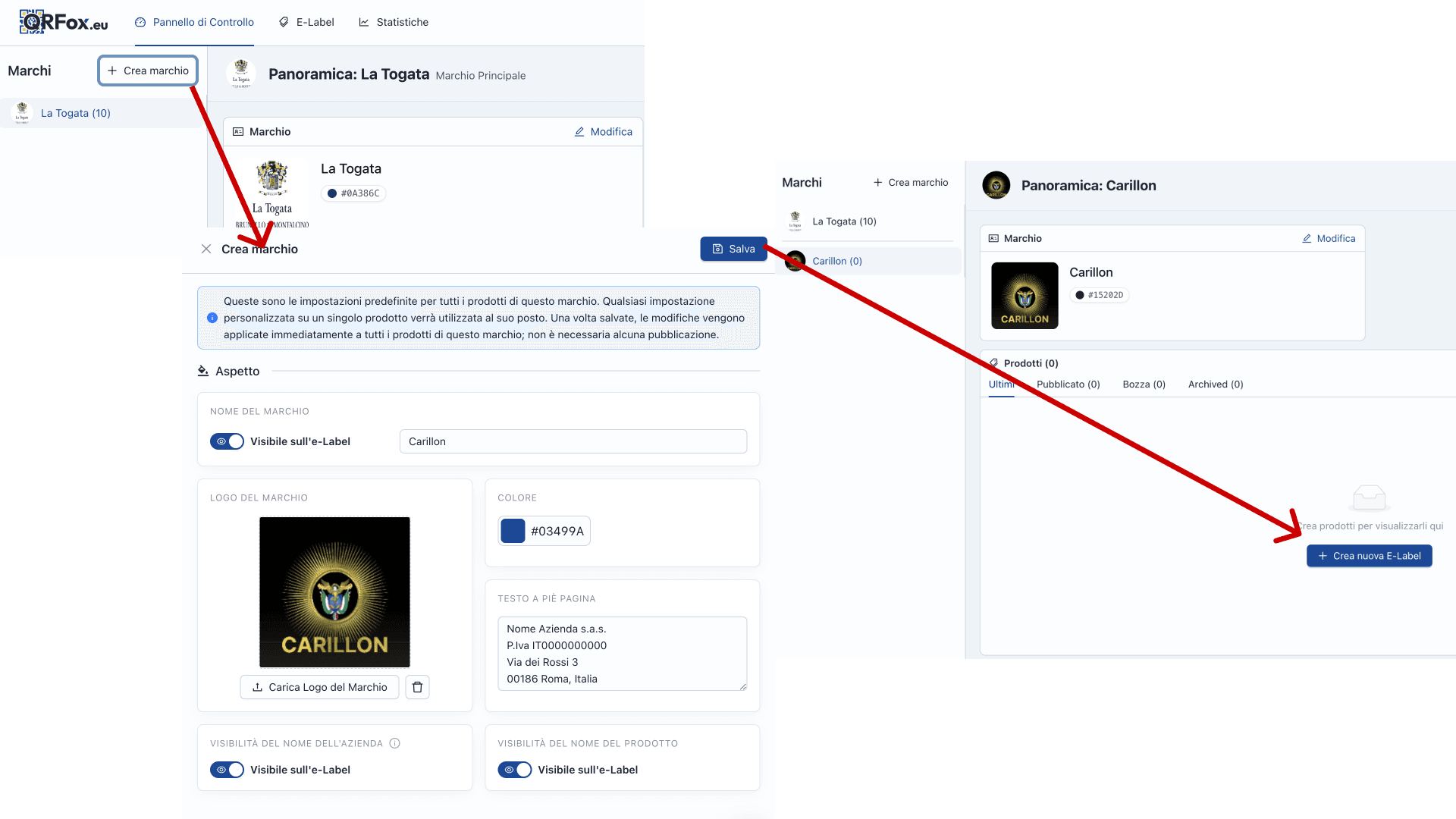
1. Go to the "Brands" section in your dashboard
From the main dashboard, open the "Marchi" (Brands) section. You'll see your existing brand(s) listed here.
2. Click "+ Create Brand"
To add a new brand, click the "+ Create Brand" button.
Use this for creating:
- Sub-brands
- Private labels
3. Fill in the brand details
Enter:
- Brand name
- Logo
- Brand color
- Footer text (e.g. required legal info)
- Visibility options (brand name, company name, product name)
These settings are applied by default to all products assigned to this brand.
Click "Save" to confirm.
4. Select the new brand
Once saved, the new brand appears in your brand list. Click it to view its overview.
5. Click "+ Create new E-Label"
Now you can add products to this brand. Click the "+ Create new E-Label" button — any product created from here will automatically use the settings and identity of the selected brand.
Done
From here, your products will reflect the correct branding automatically. You can always change a product's brand or edit brand settings later if needed.
If you have questions or need help setting up multiple brands in your account, don't hesitate to reach out. As always, we're here to support you in managing your digital labels clearly, correctly, and efficiently. Discover the key benefits of using e-labels across all your brands.